Guide
How to Edit a Resume Template in Google Docs (and Microsoft Word)
Most professional resume templates come as a Word (.docx) file. Google Docs and Microsoft Word both open .docx files, so you can use whichever you have. Here’s how to edit one without breaking the layout.
Option A: Google Docs
1. Upload and convert
- Go to Google Drive and choose New › File upload. Select the
.docxfor your paper size (US Letter in the US and Canada, A4 almost everywhere else). - Double-click the uploaded file. It opens in Docs in “Office editing” mode.
- Choose File › Save as Google Docs. This creates an editable Google Doc copy. Work in that copy.
2. Check the fonts
Templates that use common fonts such as Calibri, Cambria, Georgia, Garamond or Arial convert well because Google Docs has them. If a font looks different, select all text (Ctrl/Cmd + A) and check the font menu. A font in italics in that menu isn’t available; pick the closest alternative.
3. Replace the sample text
Click into any line and type over it. Keep the existing formatting by selecting the sample text and typing, rather than deleting a whole line and starting fresh. That way your text inherits the right font, size and spacing.
4. Add a job or bullet
- New bullet: put the cursor at the end of an existing bullet and press Enter.
- New job: select an entire existing job (title line through its last bullet), copy, click at the start of the next job and paste. Then edit the copy. This is the most reliable way to keep spacing consistent.
- Remove a section: select from its heading to the end of its content and delete. Check that the spacing above the next heading still looks right.
5. Keep dates aligned
Many templates put dates on the right using a right-aligned tab stop: the job title, then a Tab, then the date. Keep that Tab character; don’t use spaces to push dates right. If a date wraps to the next line, shorten the text on that line.
6. Export to PDF
Choose File › Download › PDF Document (.pdf). Open the PDF and check that it’s still one (or two) clean pages before you send it.
Option B: Microsoft Word
- Open the
.docxdirectly. If Word shows “Protected View”, click Enable Editing. - Type over the sample text as above. To see the hidden structure, turn on Home › ¶ (Show/Hide). You’ll see the tab characters and paragraph marks that hold the layout together.
- Use the built-in Styles (Home tab). If the template uses styles for headings, changing Heading 1 once updates every section heading at the same time.
- Copy and paste whole job entries to add new positions, exactly as in Docs.
- Export with File › Save As › PDF (Windows) or File › Export › PDF / Save As › PDF (Mac).
Apple Pages and LibreOffice can also open .docx files. The same tips apply.
Common problems and fixes
| Problem | Fix |
|---|---|
| Resume spills onto a second page | Trim the oldest role’s bullets first; then reduce space between sections slightly. Avoid shrinking body text below about 10 pt. |
| Bullets lost their indentation | Click a correctly formatted bullet, use the Paint Format tool (Docs) or Format Painter (Word), then click the broken bullet. |
| Text in a colored header won’t change color | Select the text and set the font color directly; header bands are often table cells or shading, not images. |
| Spacing looks uneven after deleting | Turn on Show/Hide (Word) and delete stray empty paragraphs. |
Before you send it
- Replace every sample name, employer, date and number with your own.
- Update the file properties if your editor shows the author name: File › Info in Word.
- Check the document passes the plain-text paste test in our ATS-friendly resume guide.
- Save the matching cover letter as a PDF too, using the same name format.
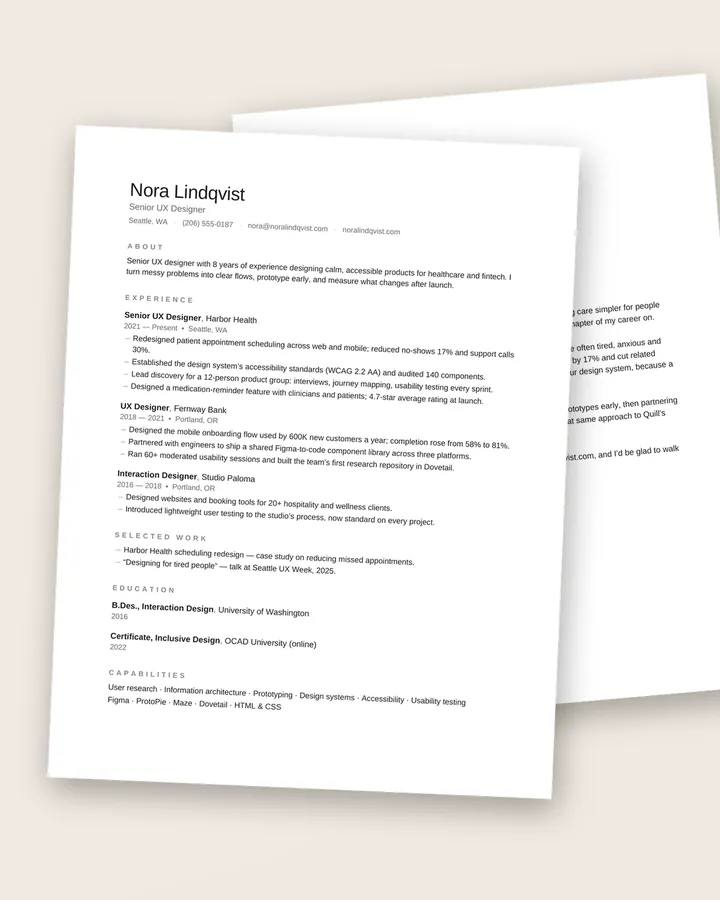
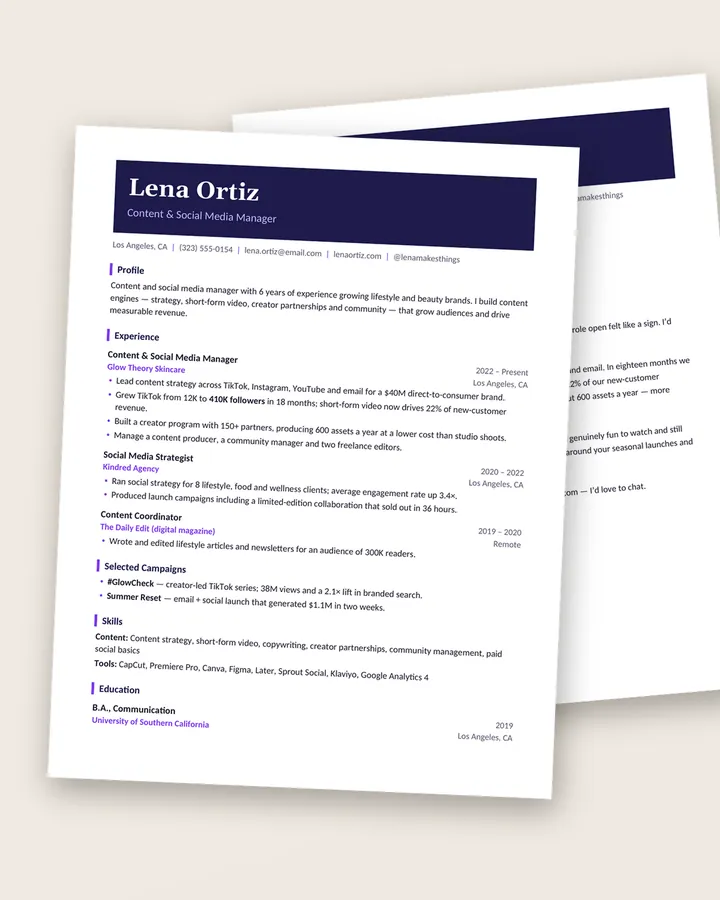
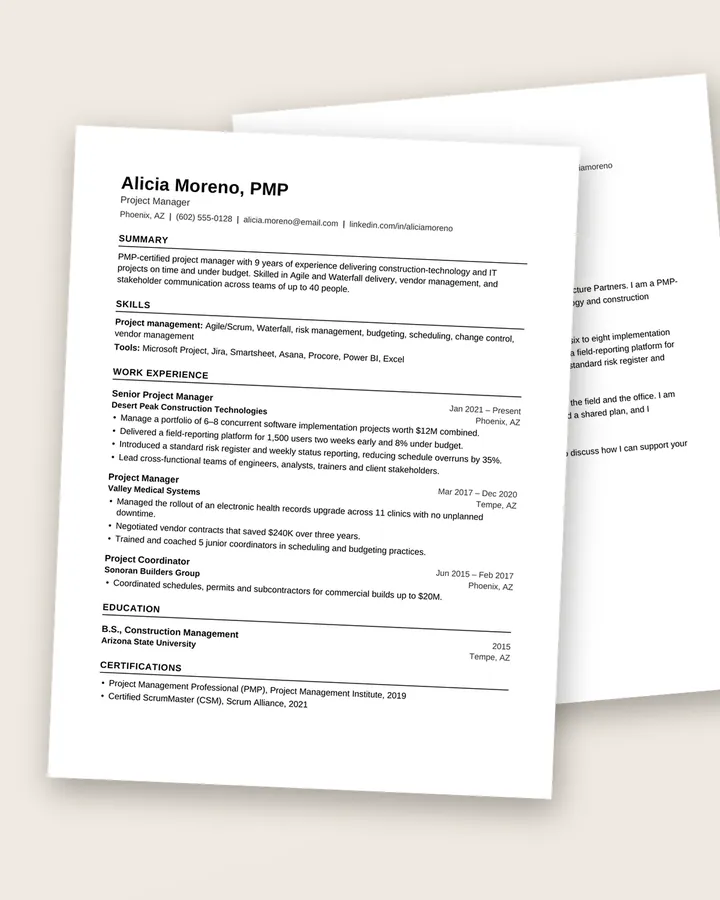
All ResumeForge templates are built with real Word styles, tab stops and bullet lists, without text boxes, so they hold together when you edit in either app. Try the minimalist Linen, the bold Studio (which includes an ATS version) or the single-column Clarity.
Free download
The Résumé Checklist
38 practical checks to run before you hit send, from your header and bullets to ATS formatting and file names. A 3-page PDF, free.
Frequently asked questions
Will a Word resume template look the same in Google Docs?
Close, but small differences in fonts, spacing and line breaks can happen. After converting, scroll through the document and fix anything that moved, then export a PDF so the final layout is locked.
Why do my dates jump to the next line?
The line is too long for the right-aligned tab stop. Shorten the job title or company name, or abbreviate the months (Jan, Feb), so the title and date fit on one line.
Can I edit the template on my phone?
You can make quick text changes in the Google Docs or Word mobile apps, but adding sections and checking the layout is much easier on a computer.